Skip to main content Skip to main content
Patterns

Electronic signature

Status: Experimental

Added in December 2025. Contributed by Beth Halligan in ‘Make and register an LPA’.

How to use ‘experimental’ patterns
Anyone can add an ‘experimental’ status pattern to the MOJ Design System. They’re early in development and can be used as a starting point. Read about all the Design System statuses.
Use an electronic signature to help people sign legal documents online.

Contents

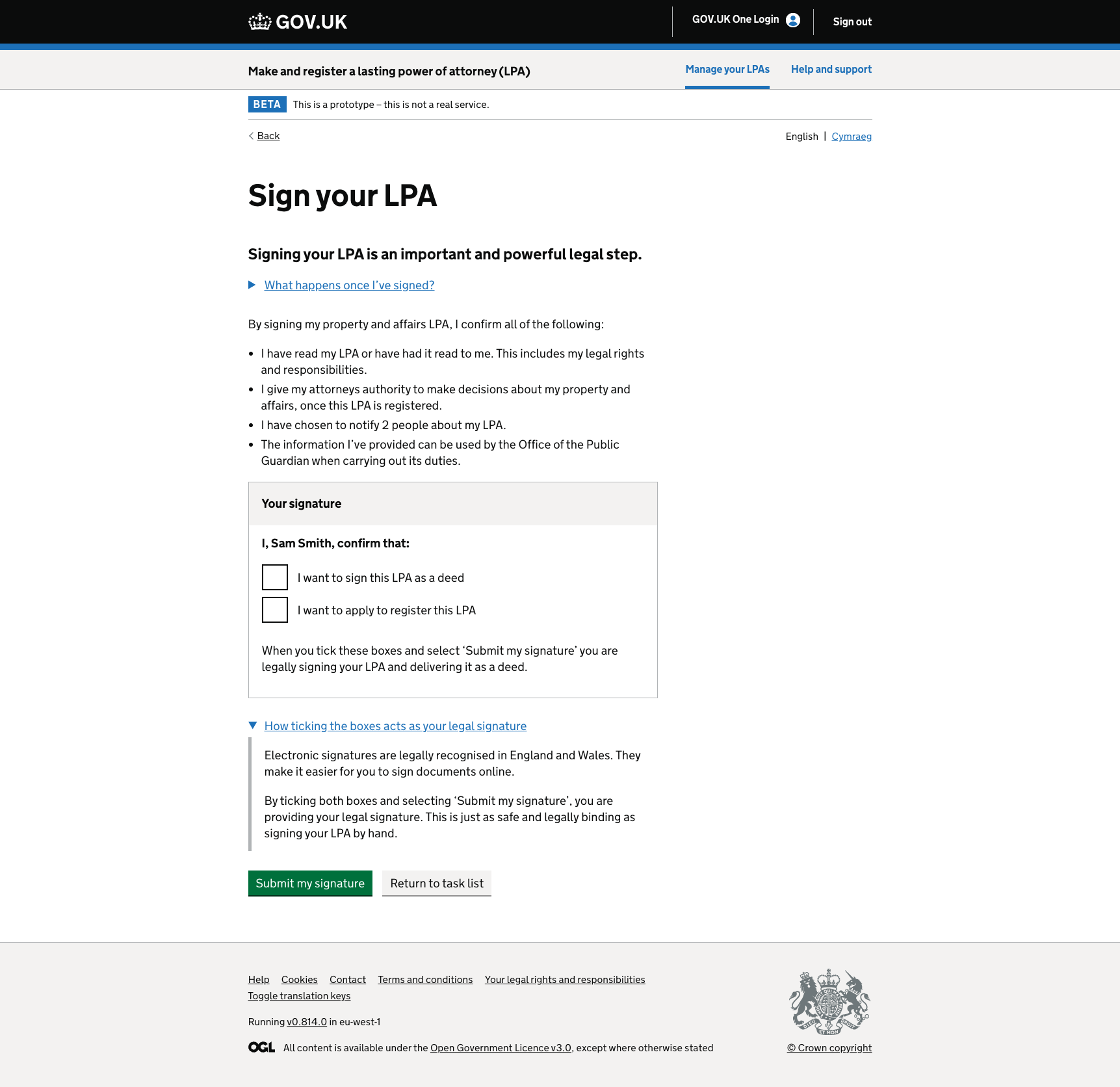
Screenshot of the “Sign your LPA” page in the “Make and register a lasting power of attorney (LPA)” service. The page explains that signing the LPA is a legal step and lists statements that the user agrees to. A section titled “Your signature” shows the user's name with 2 unticked checkboxes: “I want to sign this LPA as a deed” and “I want to apply to register this LPA.” Below is text explaining that ticking the boxes acts as a legal electronic signature. At the bottom are buttons labeled “Submit my signature” and “Return to task list.”

Overview

The electronic signature pattern allows users to legally sign a document or instrument online.

Policy experts in the Lasting Power of Attorney team have assured that this method of signing online is legally compliant.

There’s a challenge in helping people used to wet signatures to understand that ticking a box is as secure and meaningful as making a unique mark with a pen.

This pattern has tested very well. A lawyer (a professional user) gave high praise to how the pattern checks that a user understands it and is able to sign online in this way.

It’s also been successful with the public, who often prefer and trust more traditional methods for legal processes.

The team found that having guidance on signing electronically in specific parts of the journey before signing was key to giving people the confidence to break with tradition.

How the pattern is currently used

The key user need for this for the ‘Make and register an LPA’ service is to reduce the need for certain groups of people to all be in the same room at the same time. Because this is difficult to coordinate, multiple signatures end up being added to the instrument at different times.

It’s also faster than processing paper forms.

Contribute to this pattern

You can help develop this pattern by adding information to the ‘electronic signature’ Github discussion. This helps other people to use it in their service.

Example

Step 1: Check that the user can sign their LPA themselves
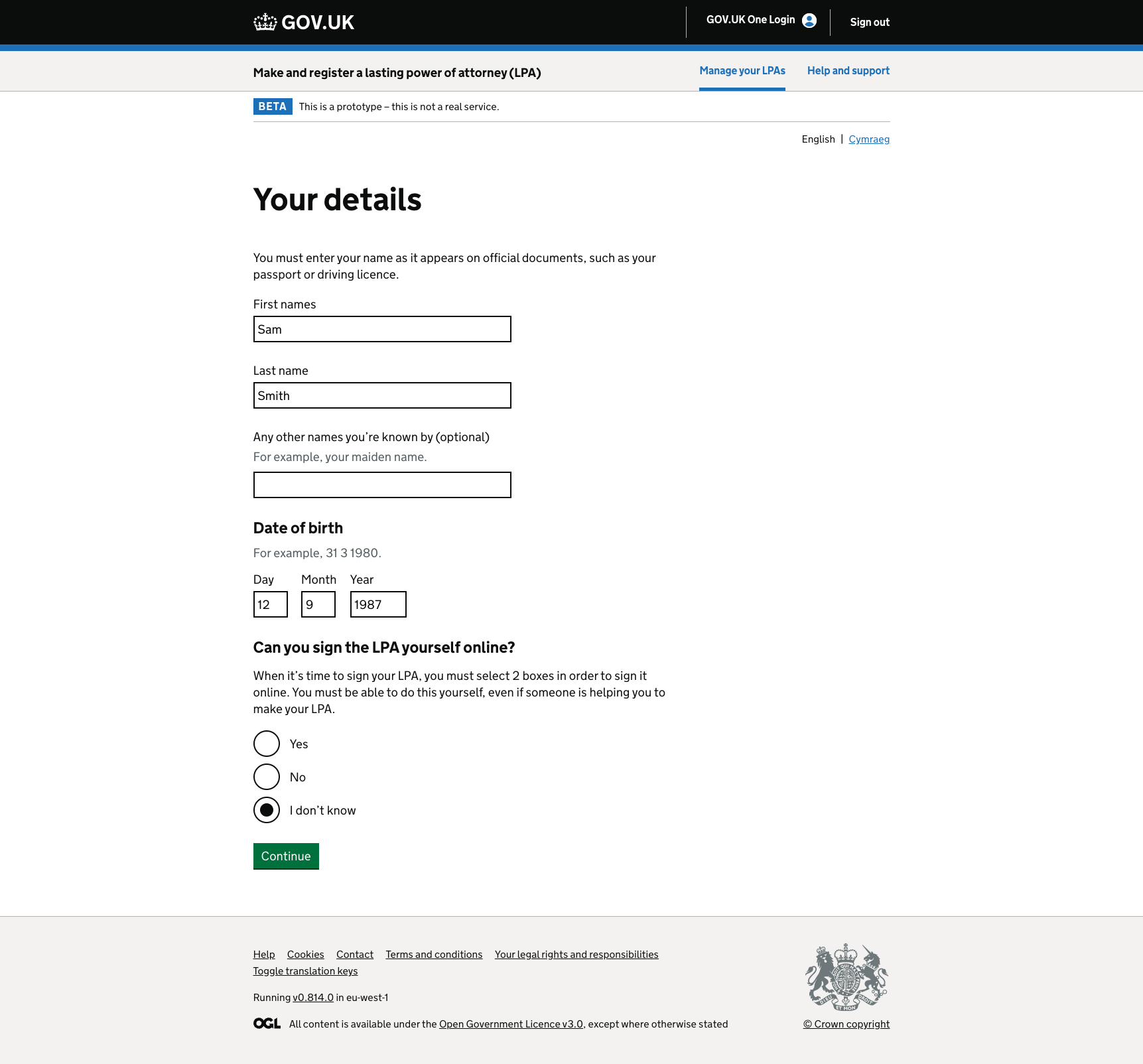
A screenshot of the

Step 2: Help users when they’re not sure if they can sign
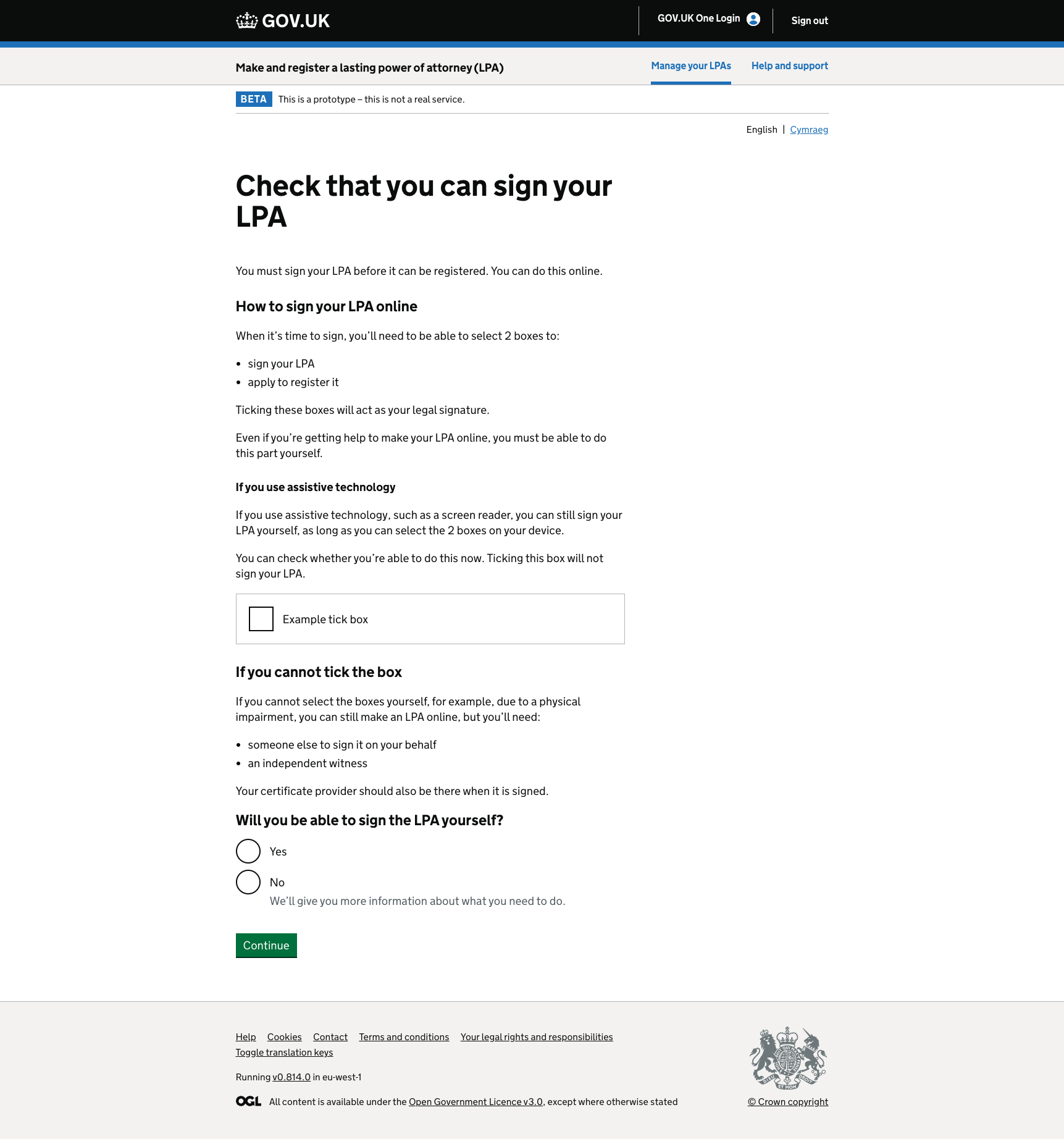
A screenshot titled “Check that you can sign your LPA.” The page explains that you must sign your LPA before it can be registered and that this can be done online. It includes sections on how to sign your LPA online, guidance for using assistive technology, and instructions if you cannot tick the box yourself. There's an example tick box shown and a question asking, “Will you be able to sign the LPA yourself?” with Yes and No radio buttons. There's a “Continue” button.

Step 3: Sign the LPA

A screenshot titled “Sign your LPA.” The page explains that signing your LPA is an important legal step and includes a section on what happens once signed. It lists confirmations such as reading the LPA, granting authority to make decisions, and choosing people to act. There is a section labeled “Your signature” with two checkboxes: “I want to sign this LPA as a deed” and “I want to apply to register this LPA.” Neither of the checkboxes are selected. Below, instructions state that ticking the boxes and selecting “Submit my signature” legally signs the LPA. There's a green primary button labelled “Submit my signature” and a grey secondary button labeled “Return to task list” at the bottom. The page includes a reveal explaining how ticking boxes acts as a legal signature.

Step 4: An error message for when the user has not selected both options
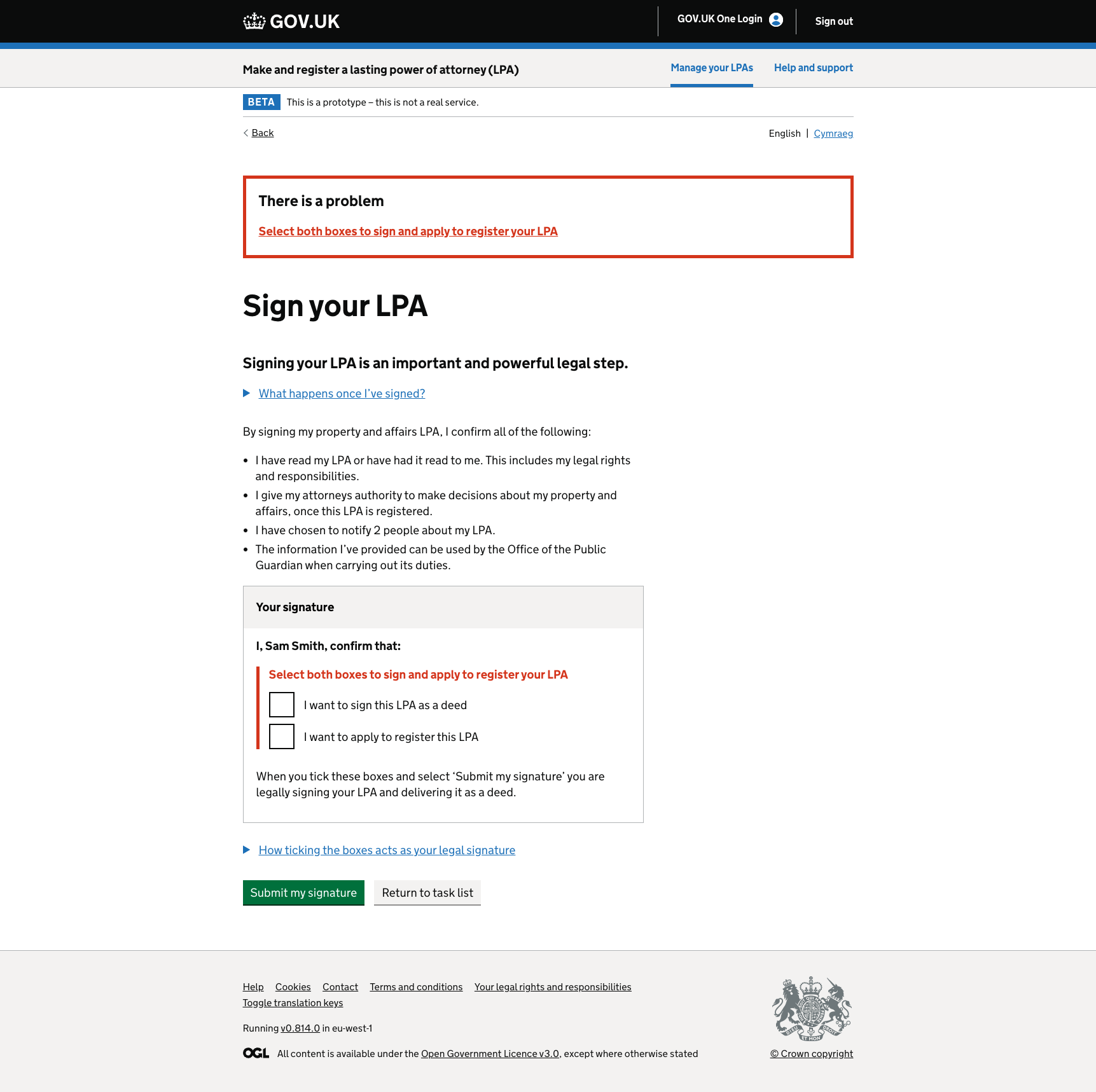
A screenshot shows a GOV.UK error message summary for the signature section. This is on the “Sign your LPA” page. The error message

Step 5: Send the LPA witness a code

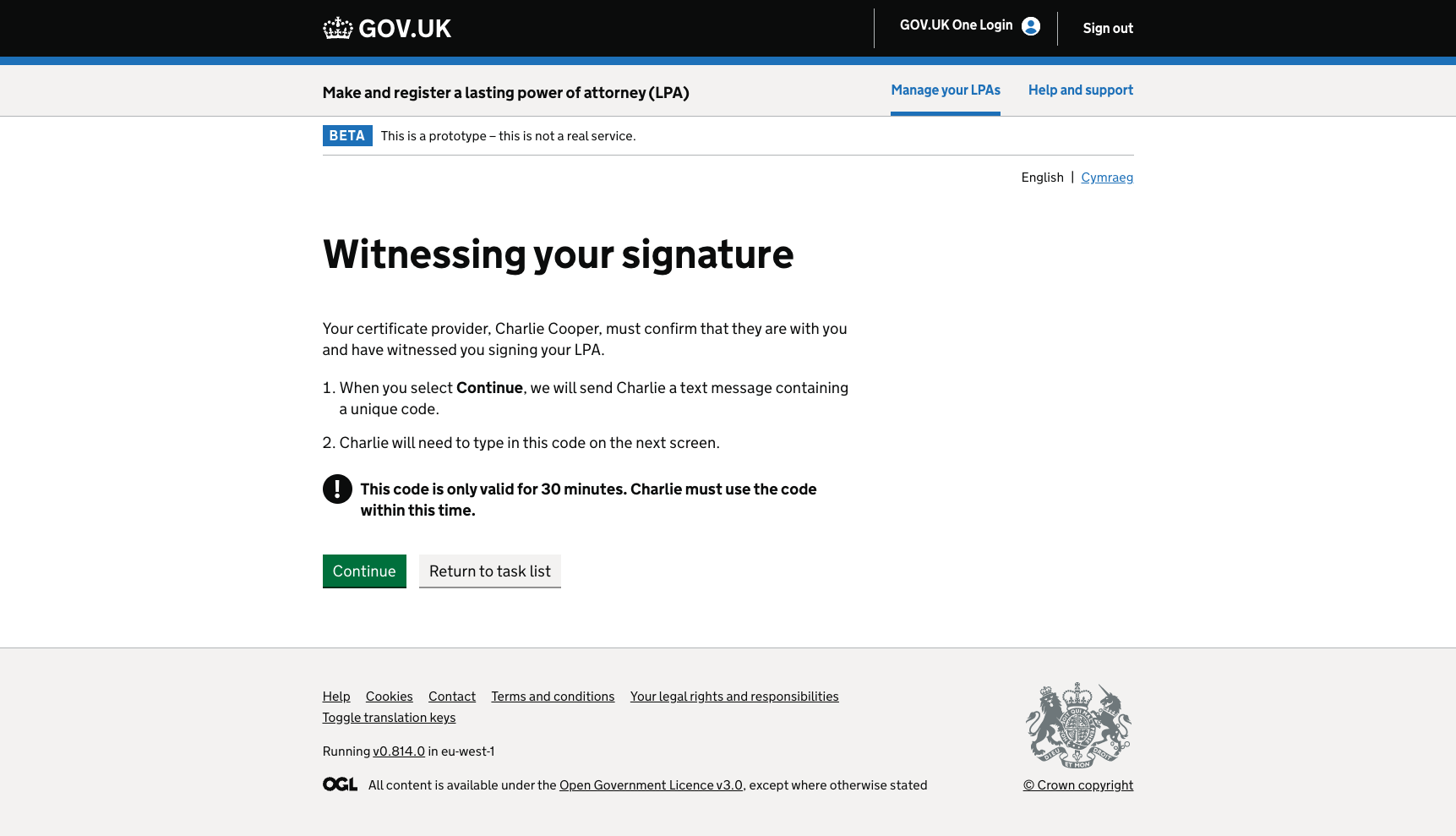
A screenshot titled “Witnessing your signature.” The page explains that the certificate provider must confirm they witnessed the signing of the LPA. Instructions state that after selecting “Continue,” a text message with a unique code will be sent to the certificate provider, who must enter it on the next screen. A warning indicates the code is valid for 30 minutes. At the bottom, there are two buttons: a green “Continue” button and a grey “Return to task list” button.

Step 6: The LPA witness enters their code
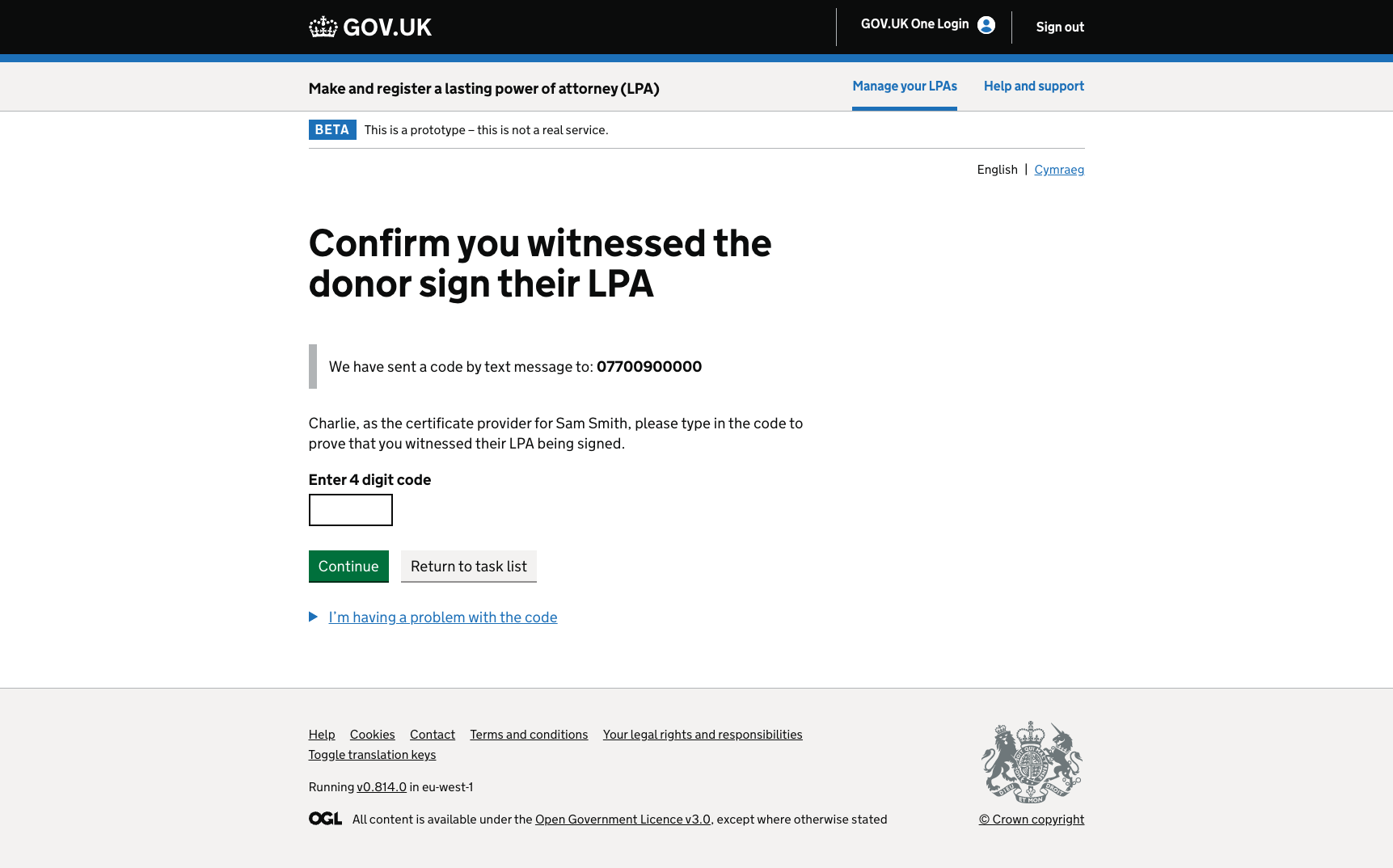
A screenshot titled “Confirm you witnessed the donor sign their LPA.” The page states that a code has been sent by text message to the phone number. It instructs the certificate provider to enter the 4-digit code to confirm witnessing the signing. There is an input box for the code, a green “Continue” button, and a grey “Return to task list” button. A reveal below reads “I’m having a problem with the code.”

A Figma link was not included when this pattern was added but you can view example images.

There may be more information in the ‘electronic signature’ Github discussion.

If you have a Figma link for this pattern (or a pattern like it) you can add it to Github discussion. This helps other people to use it in their service.

Accessibility findings have been added for this component. There may be more information in the ‘electronic signature’ Github discussion.

External audit

  • Conducted by: User Vision
  • Date: 22 August 2024

Audit findings

No issues returned.

Internal review

  • By: MOJ Accessibility team
  • Date: 30 May 2024

Review findings

No issues returned.

Contribute accessibility findings

If you have accessibility findings that are relevant to this pattern you can add them to the Github discussion. This helps other people to use it in their service.

No code was included when this contribution was added.

You can use the ‘electronic signature’ Github discussion to:

  • view other code blocks
  • add relevant code